


Arranging windows
How to snap windows side by side on a Mac
Drag to an edge on macOS 15, Split View on macOS 13 and 14, or one shortcut per half. Here is each way, step by step, and when to use which.
6 min read

SnapForMac snaps windows into place with a shortcut, a drag, or a Snap Layouts bar that drops from the top of the screen. Pick a layout, then fill the other zones from a list of your open windows.
Three ways to snap a window
A shortcut. Halves, quarters, maximise and more, from any app.
A drag. To a side, a corner or the top of the screen.
The menu bar. Every action as a button, one click away.
Snap Layouts
macOS can put one window in a half. It does not help with the second one. SnapForMac places the first window, then lists your other open windows so the next zone is one click or one key away.
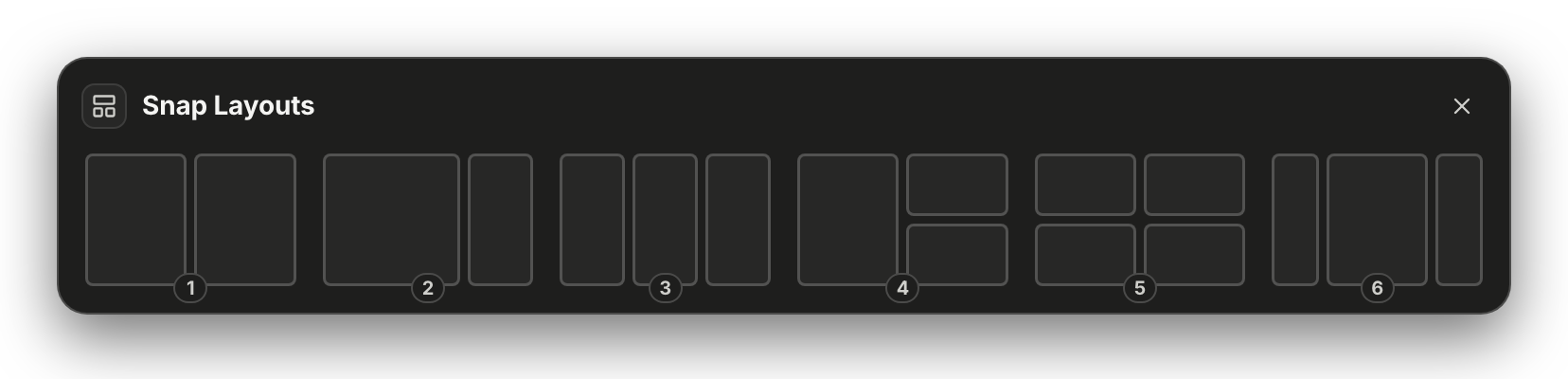
The Snap Layouts bar, as it drops from the top of the screen.
Press the shortcut, click Snap Layouts in the menu bar, or drag a window to the top of the screen.
Click a zone or press its number. With a drag, the zone under the pointer lights up and you let go.
The empty zones list your other open windows by app and title. Click one, or press its number.
And the rest
A menu-bar app that stays out of the way: no Dock icon, no window of its own until you ask for one.
Keyboard
Halves, quarters, maximise, centre and restore, each on its own shortcut. They work in any app, with every SnapForMac window closed.
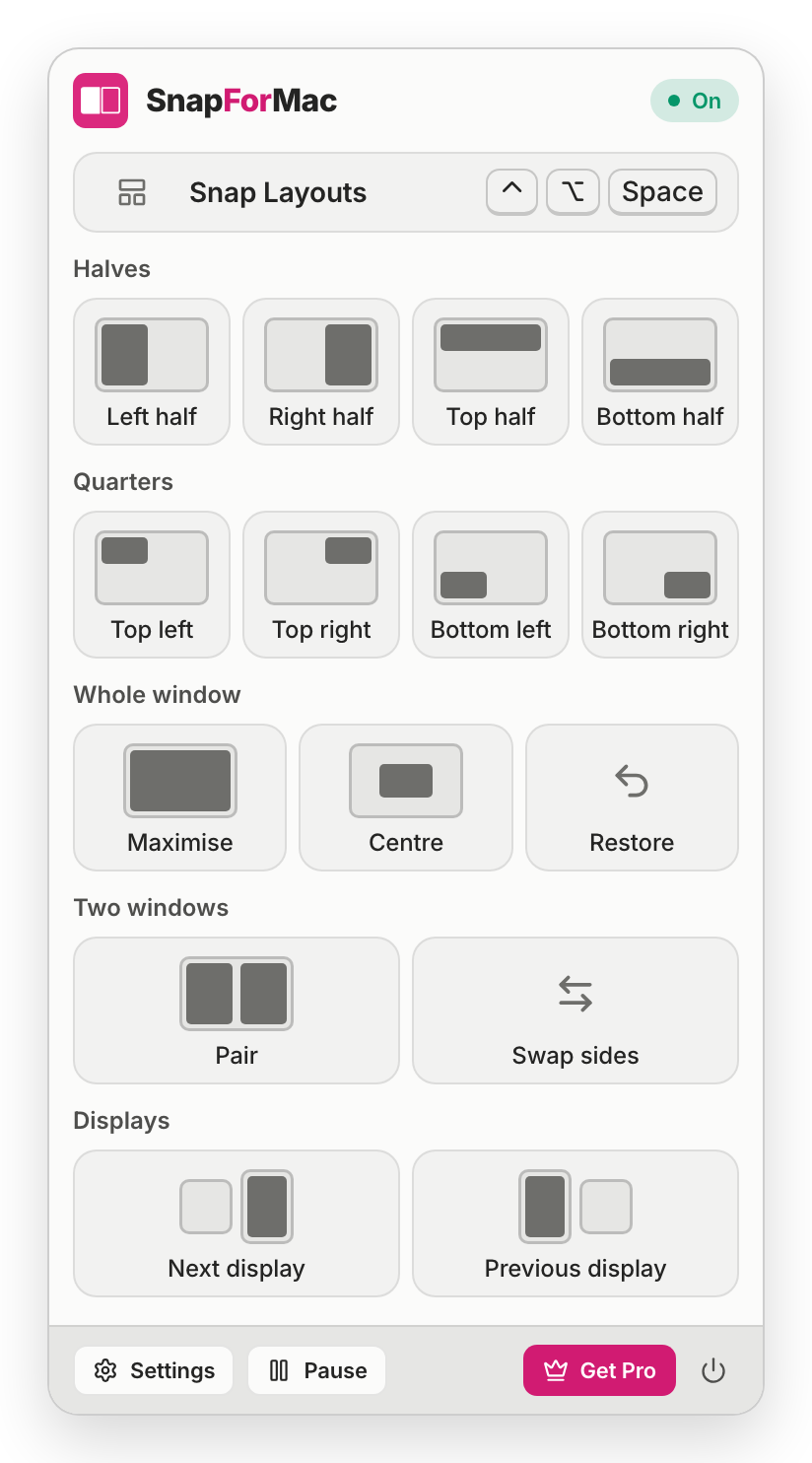
Drag
Drag a window to a side for a half, to a corner for a quarter, or to the top of the screen for the Snap Layouts bar. A preview shows where it will land before you let go.
Pairs
One shortcut puts the window in front and the one behind it side by side. After that they act as a pair.
Privacy
To move another app's window, macOS asks you to give an app the Accessibility permission. That is a lot of trust, so here is exactly what SnapForMac does with it.
The app does
The app never does
Reads a window's position, size, title and the app it belongs to
Reads the text or contents inside another app's window
Sets a window's position and size, and brings it forward
Clicks in, types into or closes another app's window
Watches the mouse button and drags, to see a window being moved
Watches what you type. The keyboard is not part of what it listens to
Holds window titles in memory while the Snap Layouts bar is open
Saves, logs or sends a window title, or anything else about your windows
The permission is used to read where a window is and to move it. Nothing inside the window is read.
Shortcuts are registered with macOS by name. The app does not listen to your typing.
The Snap Layouts bar lists windows by app name and title, so the app never asks to record your screen.
The app sends no usage counts, no crash reports and no telemetry. There is no account either.
And also
The small things that make a window manager feel finished.
A small icon in the menu bar opens every action. There is no Dock icon unless you ask for one.
A window snaps on the display it is on, and one shortcut moves it to the next or the previous one.
One shortcut puts a window back at the size and place it had before you snapped it.
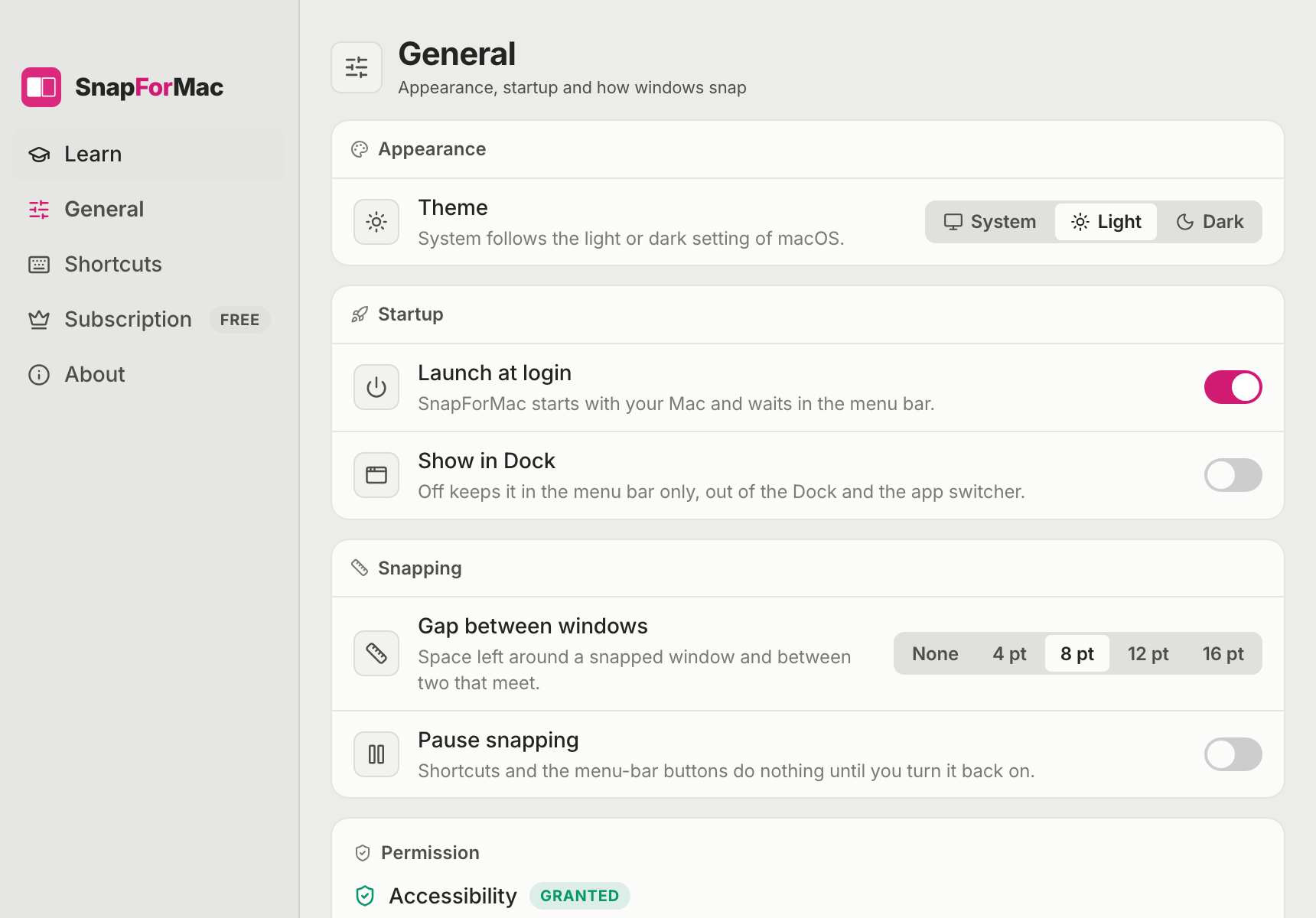
Snapped windows meet edge to edge. Prefer some space? Set a gap of 4, 8, 12 or 16 points.
Switch snapping off for a while from the menu bar or Settings, and back on when you want it.
Follows the light or dark setting of macOS, or stays on the one you pick.
On first launch a short page shows five shortcuts to start with and ticks each one off as you press it.
The app checks for a new version once a day and installs one only when you click, after its signature is checked.
Pricing
Halves, quarters and drag to snap are free, with no time limit. SnapForMac Pro starts at $14.99, paid once, with one key for 2, 5 or 10 Macs.
$0for good
The basics of window snapping, with no time limit and no account.
Pay once
from$14.99once
Pay once and keep it. No subscription. Every size unlocks the same features.
Pro is not on sale yet. The free version does not need it.
Guides
Step-by-step answers on side by side windows, shortcuts and setup.
Arranging windows
Drag to an edge on macOS 15, Split View on macOS 13 and 14, or one shortcut per half. Here is each way, step by step, and when to use which.
6 min read

Arranging windows
Three columns, one main window with two stacked, or a wide centre with two sides: what macOS can do itself and where a layout picker is quicker.
6 min read

Arranging windows
What on a Mac matches the Windows key and arrows, the layout picker and Snap Assist, feature by feature, and what does not carry over.
6 min read
Questions
Snap to halves and quarters, maximise, centre and restore by keyboard, drag a window to an edge or a corner, move windows between displays, and use the Snap Layouts bar 5 times a day. That part is free with no time limit.
macOS 15 can place a window in a half or a quarter. SnapForMac adds what it leaves out: the Snap Layouts bar with six layouts, filling the other zones from a list of your open windows, pairing two windows in one shortcut, and thirds. It also runs on macOS 13 and 14, which have no tiling of their own.
macOS lets one app move another app's window only through the Accessibility permission. SnapForMac uses it to read where a window is and to move and resize it, and for nothing else.
No. Shortcuts are registered with macOS as named key combinations. The part of the app that watches for a window being dragged listens to the mouse only, never the keyboard.
No. It starts at $14.99, paid once. There is nothing to renew.
It depends on the size you buy: 2 Macs for $14.99, 5 Macs for $29.99, 10 Macs for $49.99. In Settings, on the Subscription page, you can deactivate a Mac to free its place for another one.
Get SnapForMac
Halves, quarters and drag to snap are free. SnapForMac Pro starts at $14.99, paid once. Needs macOS 13 or later, on Apple Silicon and Intel.